Creating SOAP API
Create Soap API
Step 1.Click on APIs on the home page → Click Create API.

Step 2.Select the Type of API, select SOAP API and click on next and provide the required fields as shown below.
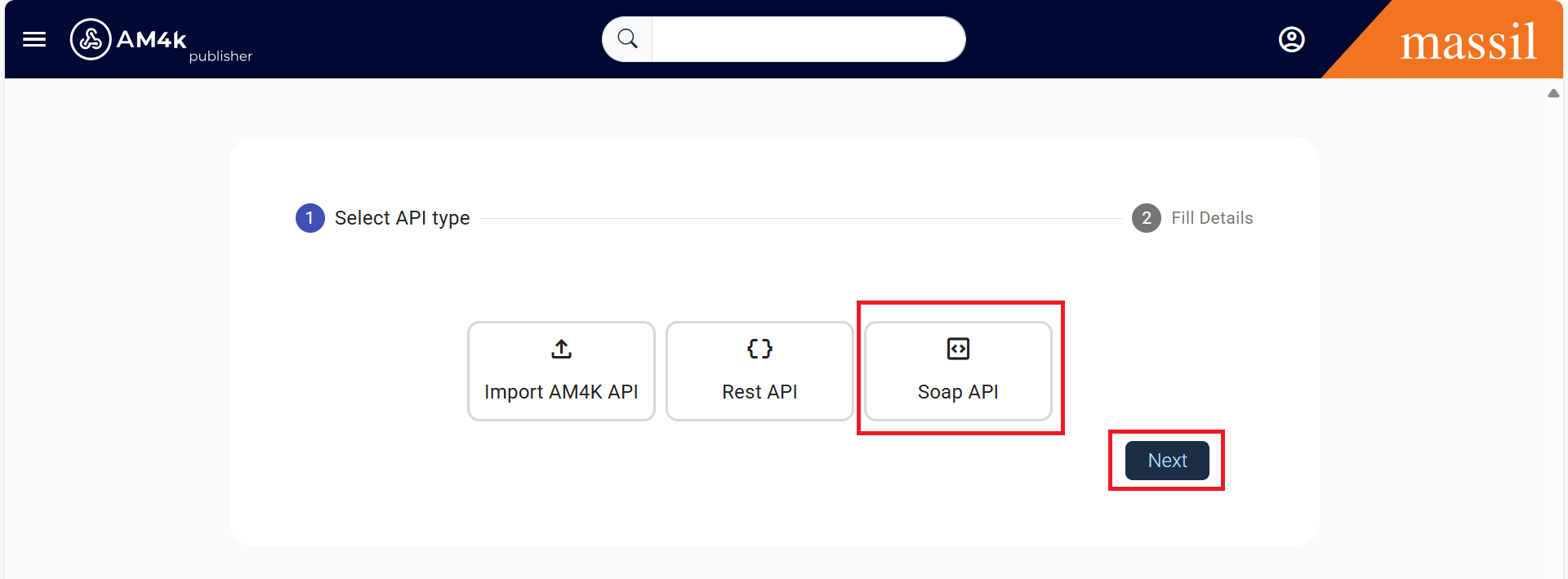
-> By using Generate Rest API it is showing message like error while reading WSDL Document
SOAP Configuration
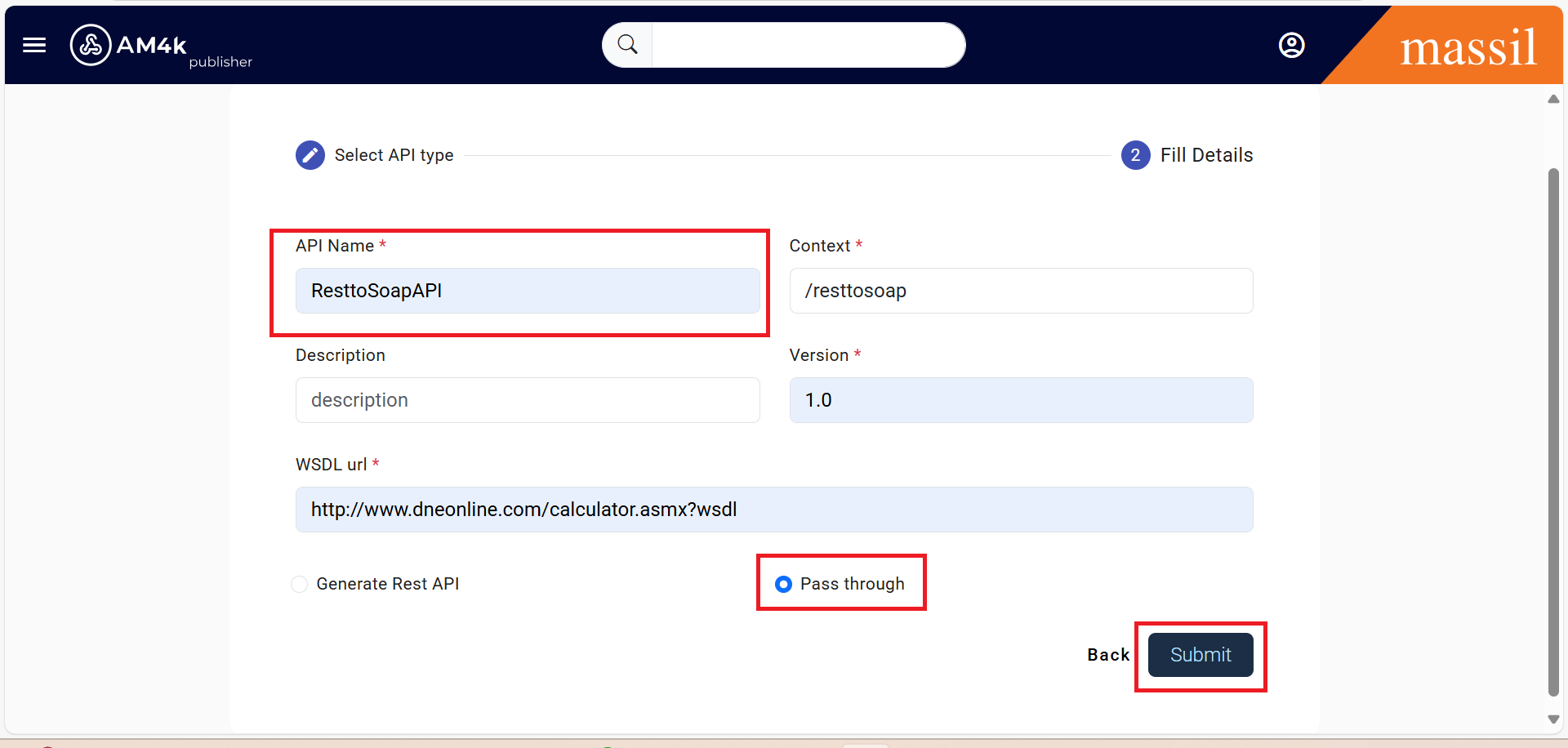
->Click on Pass through radio button and click on submit
| Field | Sample Value |
|---|---|
| APIName | ResttoSoapAPI |
| Version | 1.0 |
| Context | /resttosoap |
| Description | The API context is used by the Gateway to identify the API. Therefore, the API context must be unique. |
| WSDL | http://www.dneonline.com/calculator.asmx?wsdl |
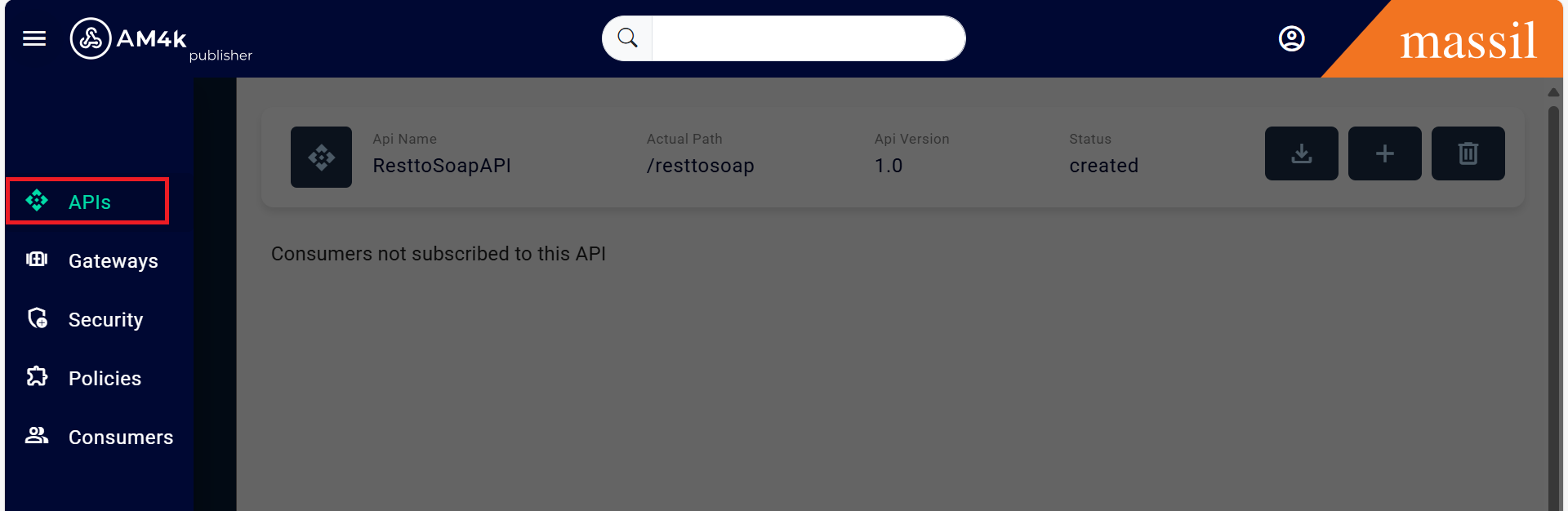
Step 3.Once you created API click on APIs as shown below then select your created API.
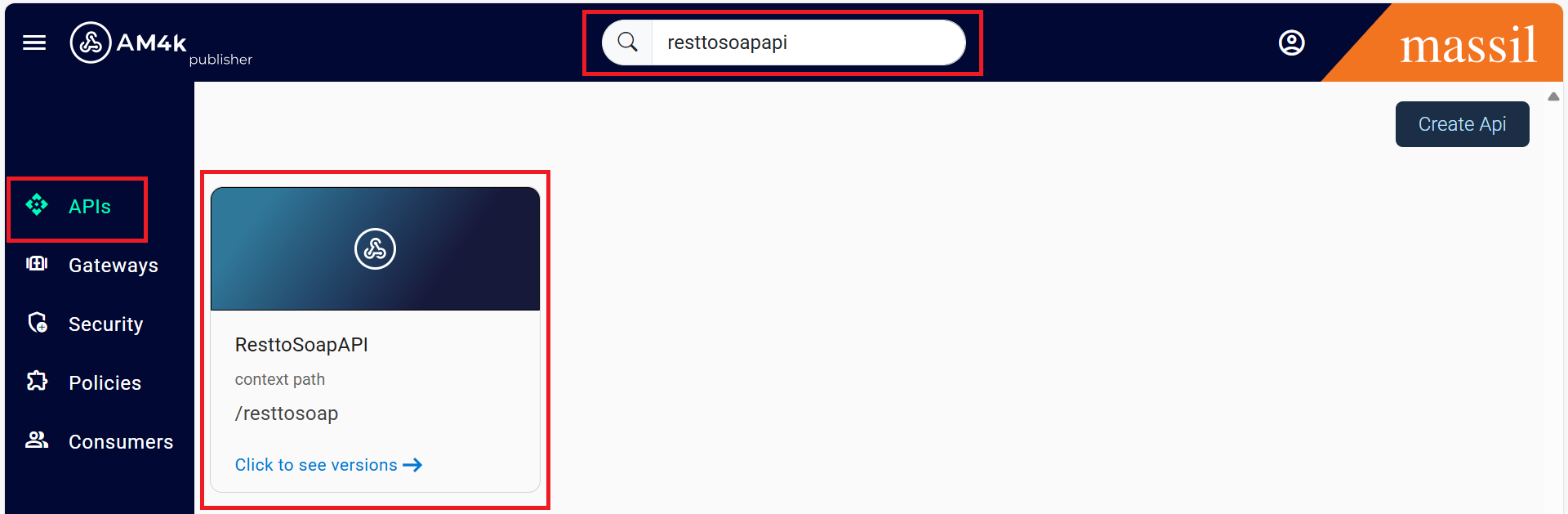
Step 4.When you select your created api it shows as shown image click on it.
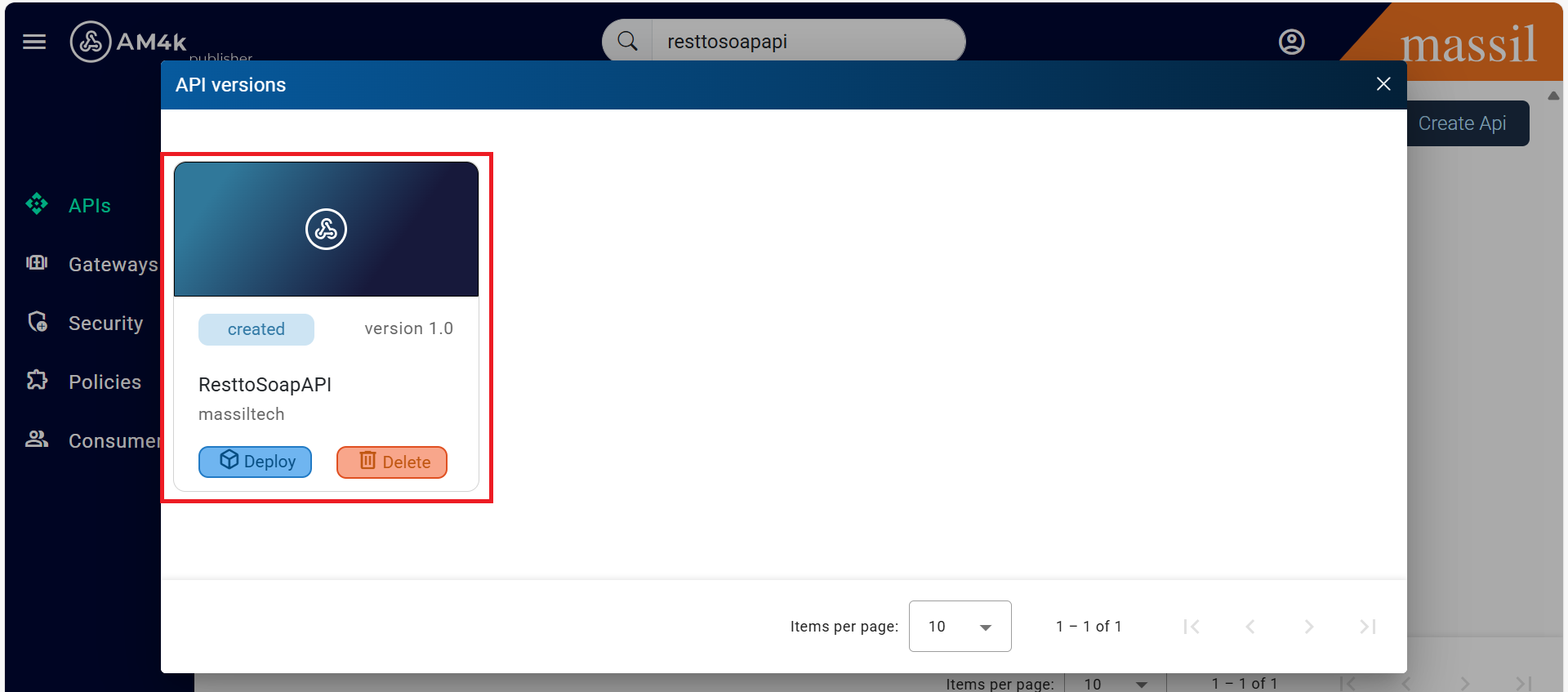
Step 5.When you open your API, you will see a screen like the one shown in the image. Next, select Consumer
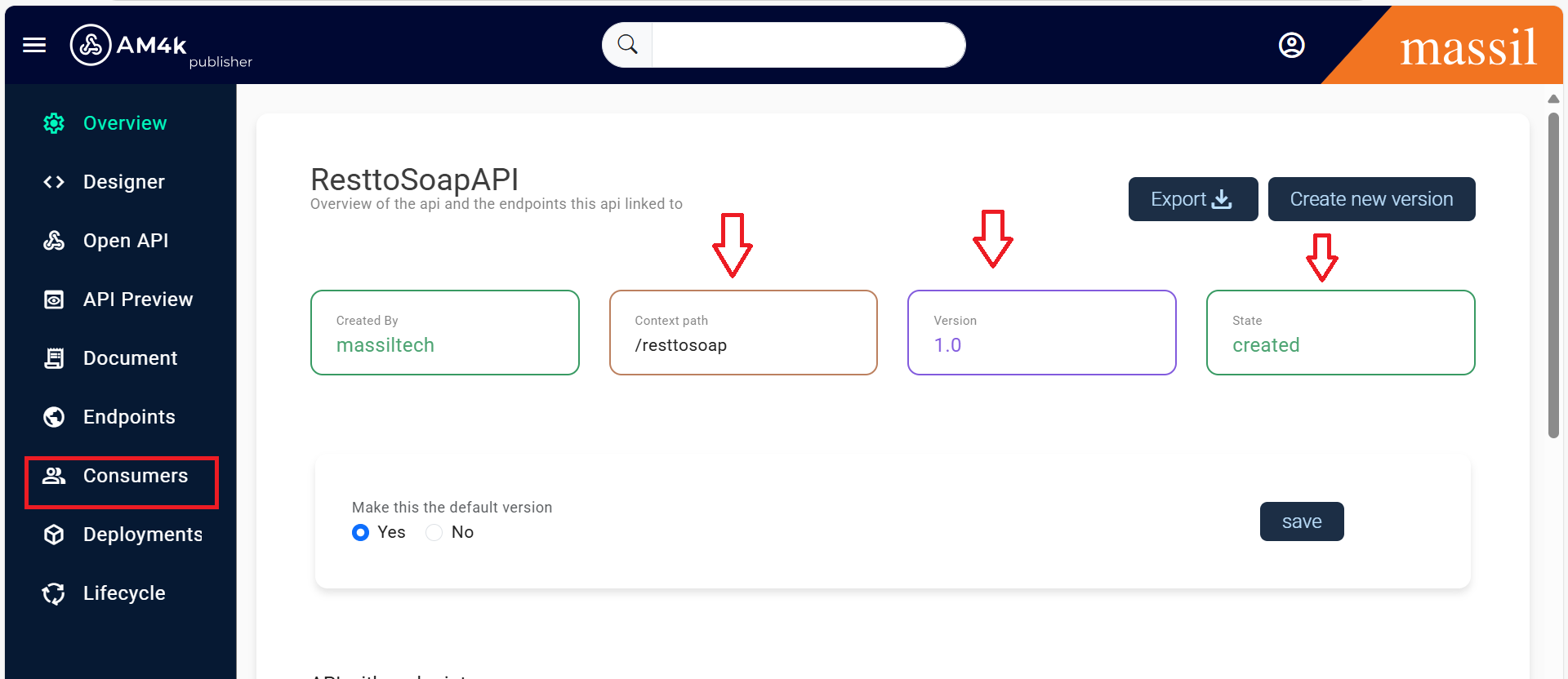
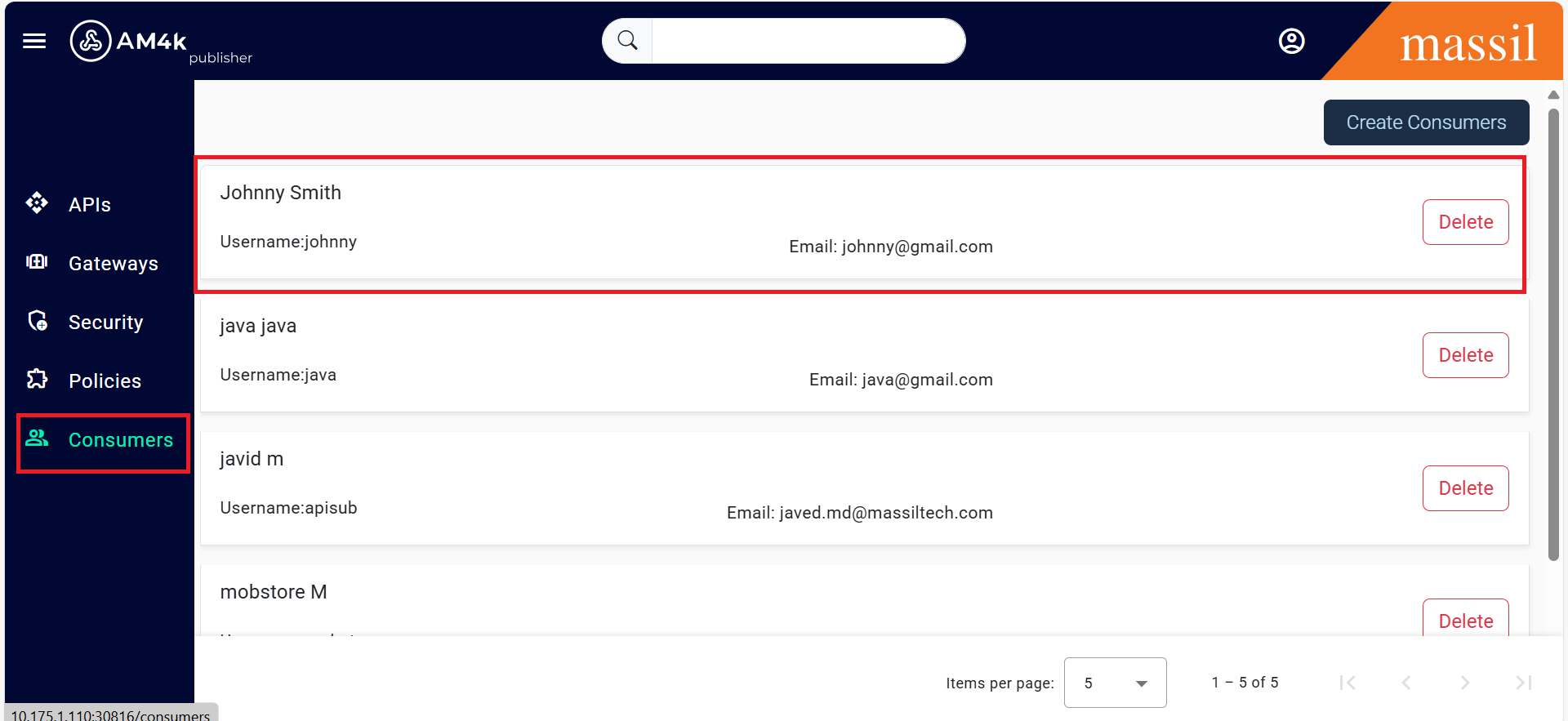
Step 6.When the Consumer section is opened, it appears as shown in the image below
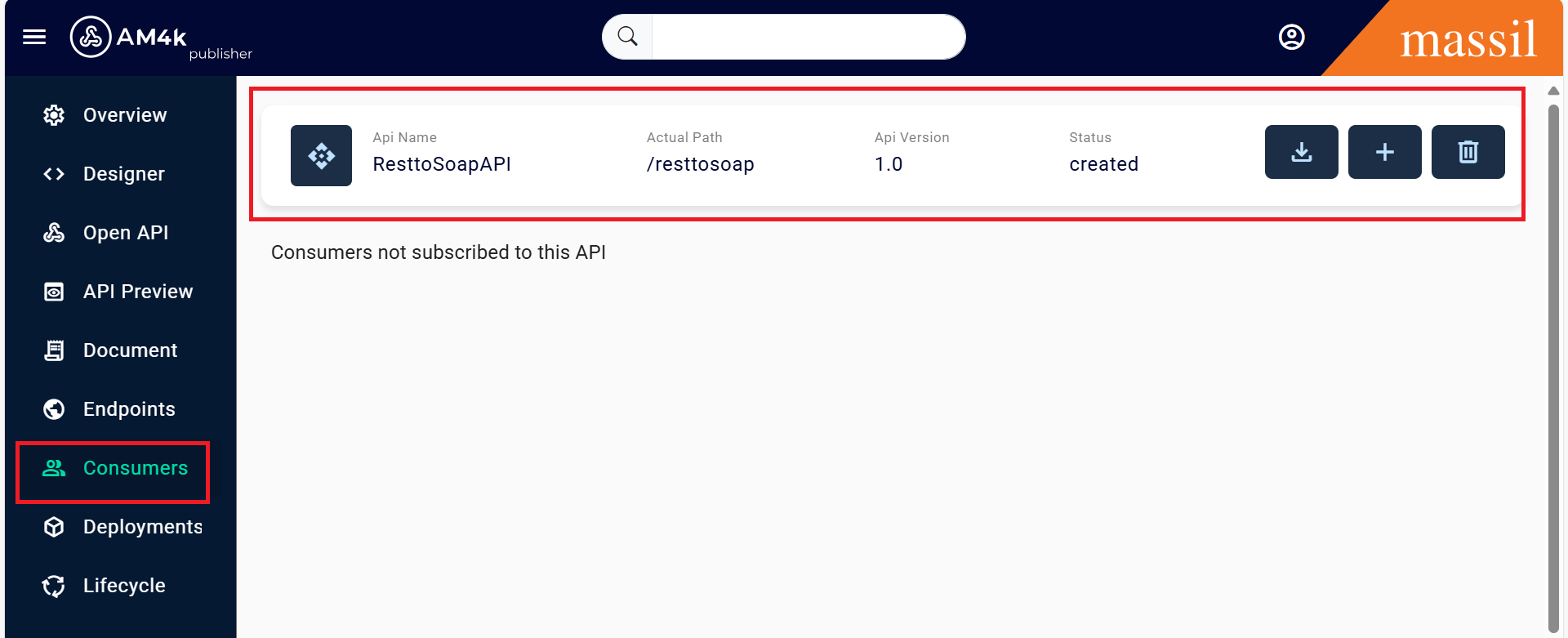
Step 7.Next, click on APIs.In the Consumers section, click on it and then open the consumer you created
Step 8.Open the client ID
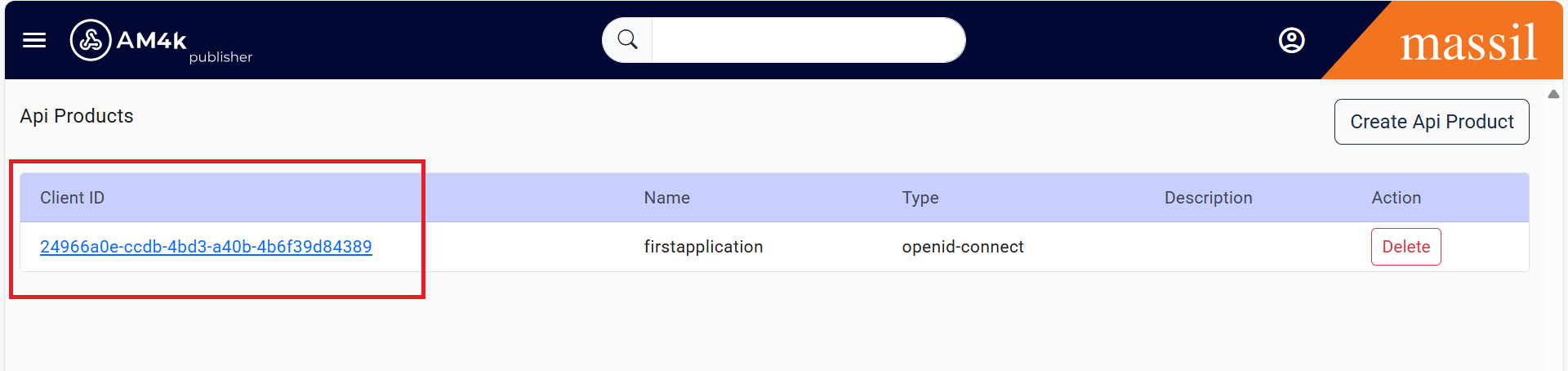
Step 9.Then, you will be able to see as shown in image clcik on Subscriptions.

Step 10.After,you clicked on subscriptions subscribe the API
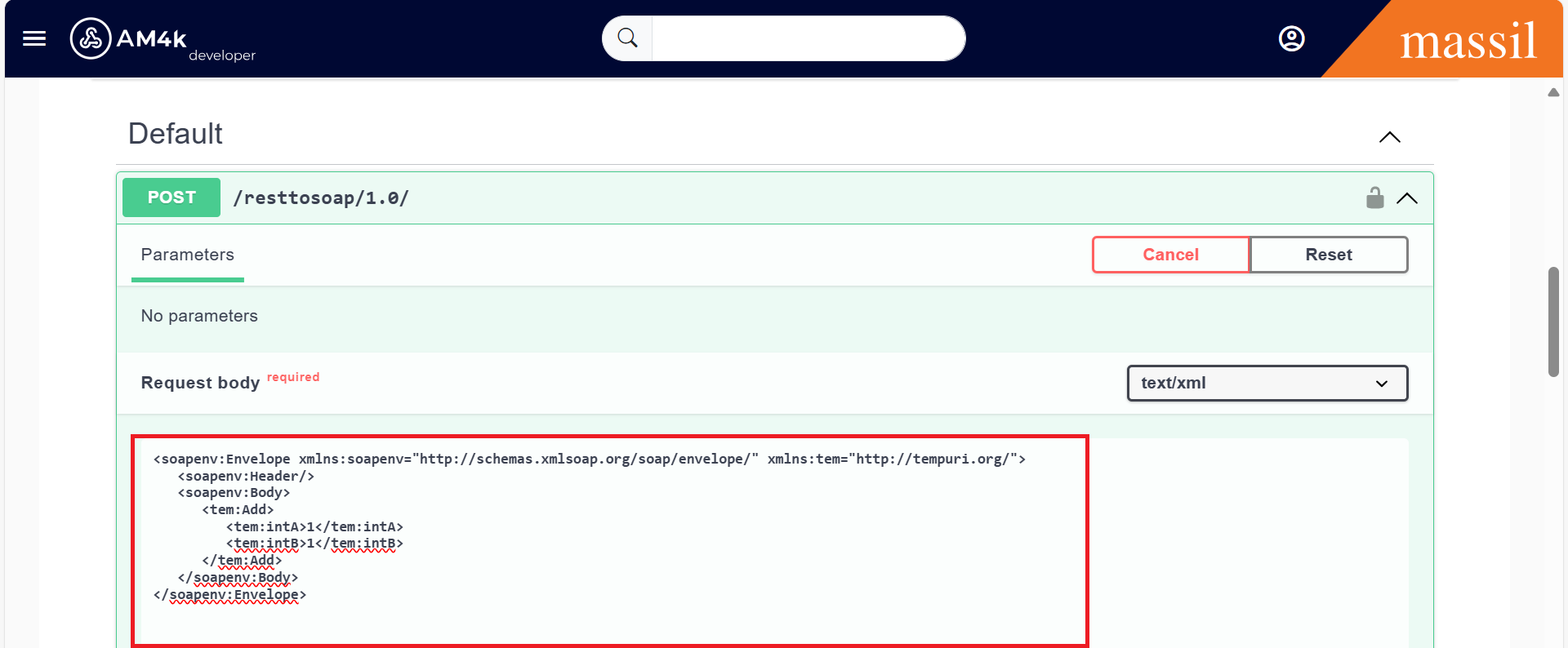
Step 11.Once you subscribe the API it shows message as "API subscribed successfully".
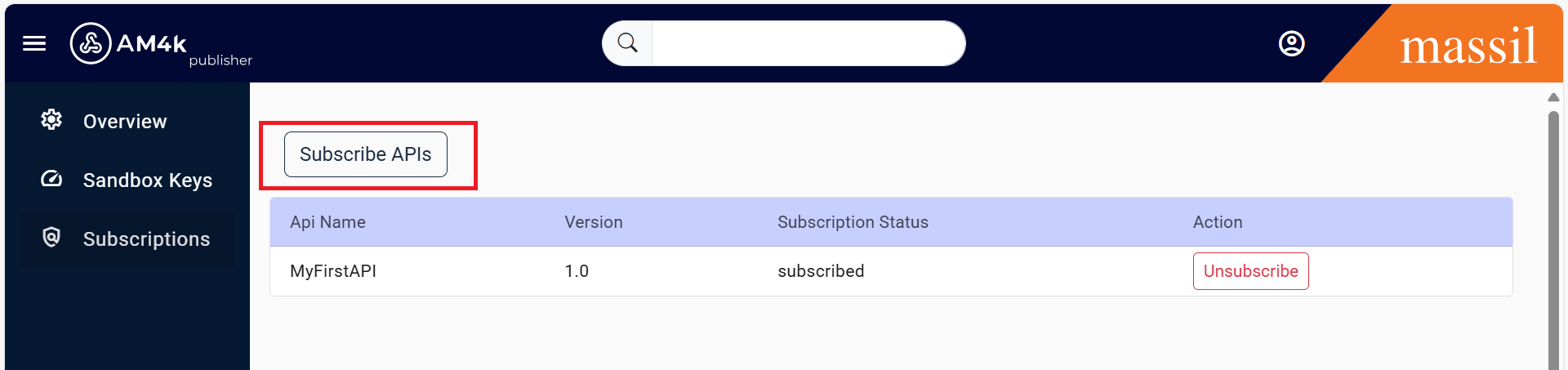
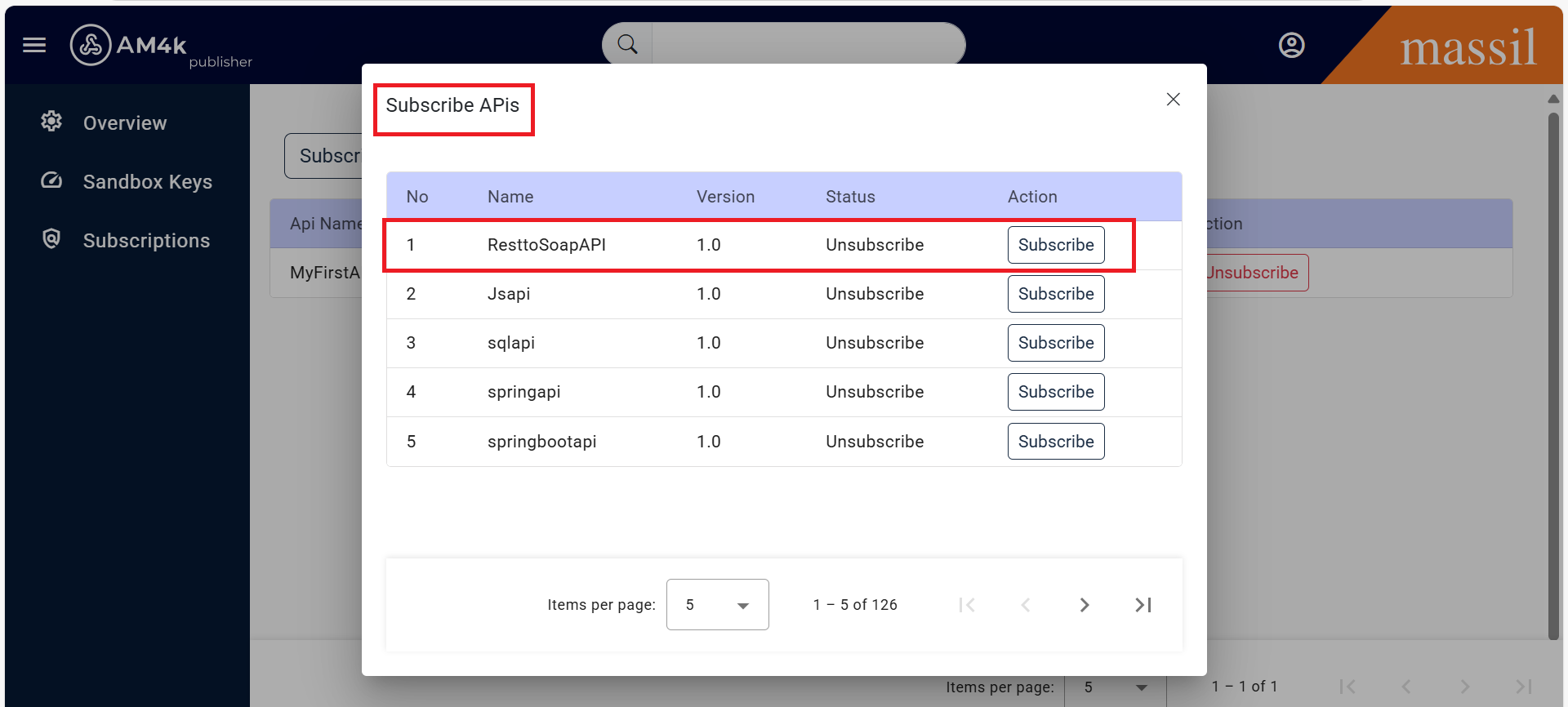
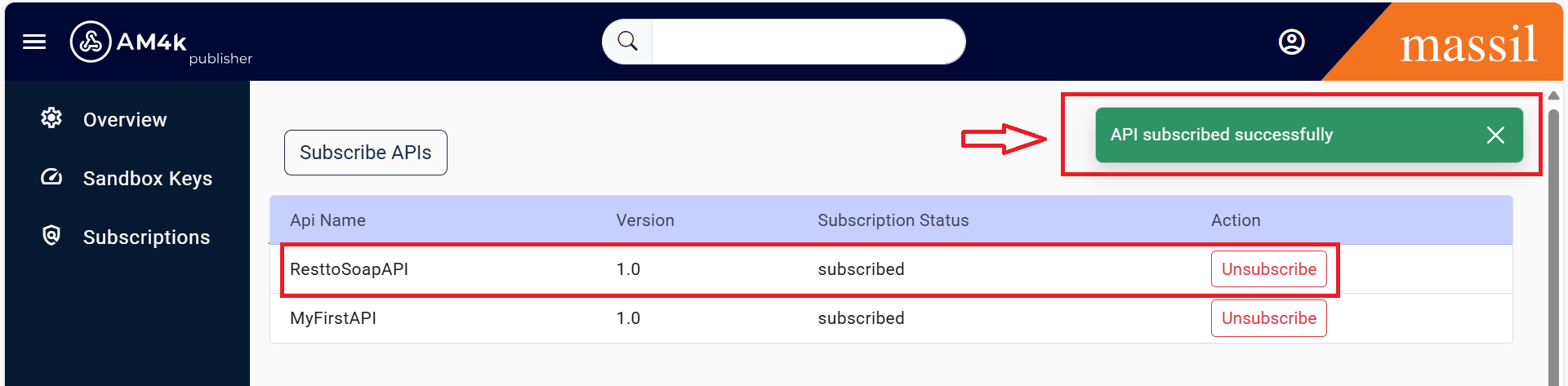
Step 12.Click on APIs search your api then you will be able to see your created api
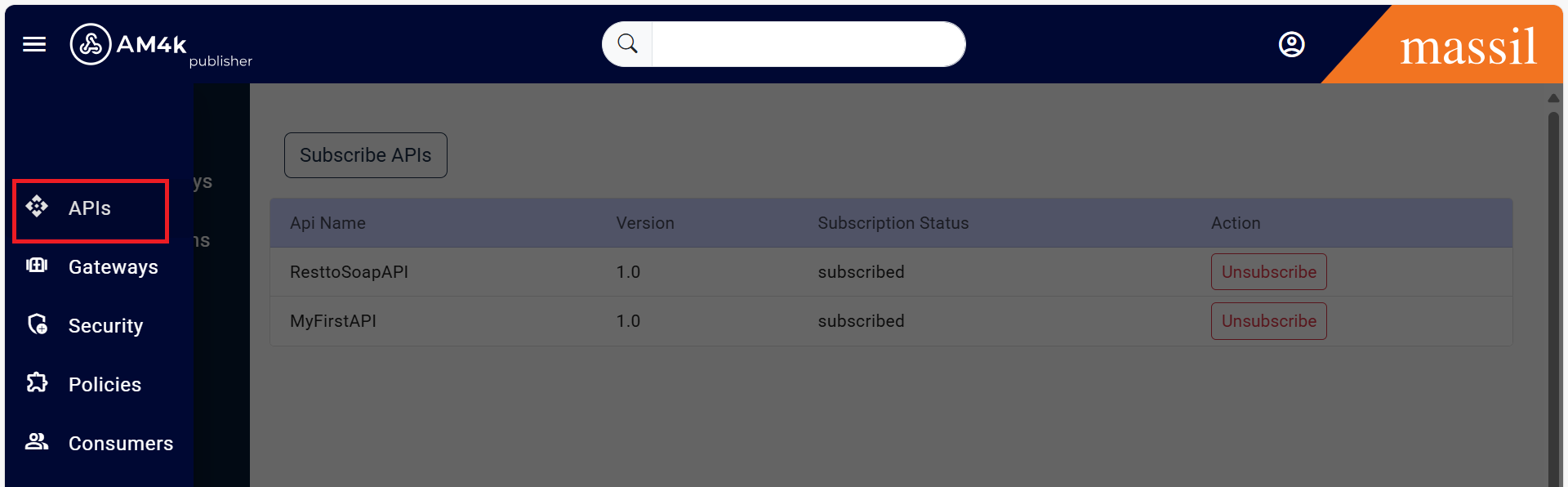
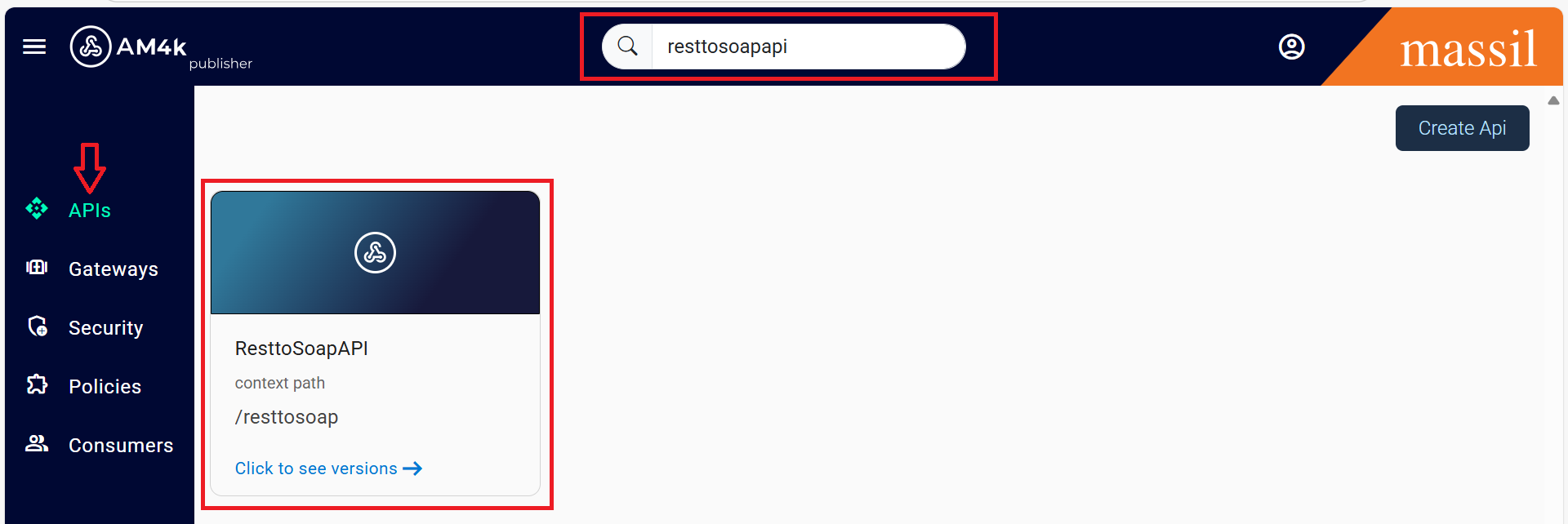
Step 13.Select your api as shown below images
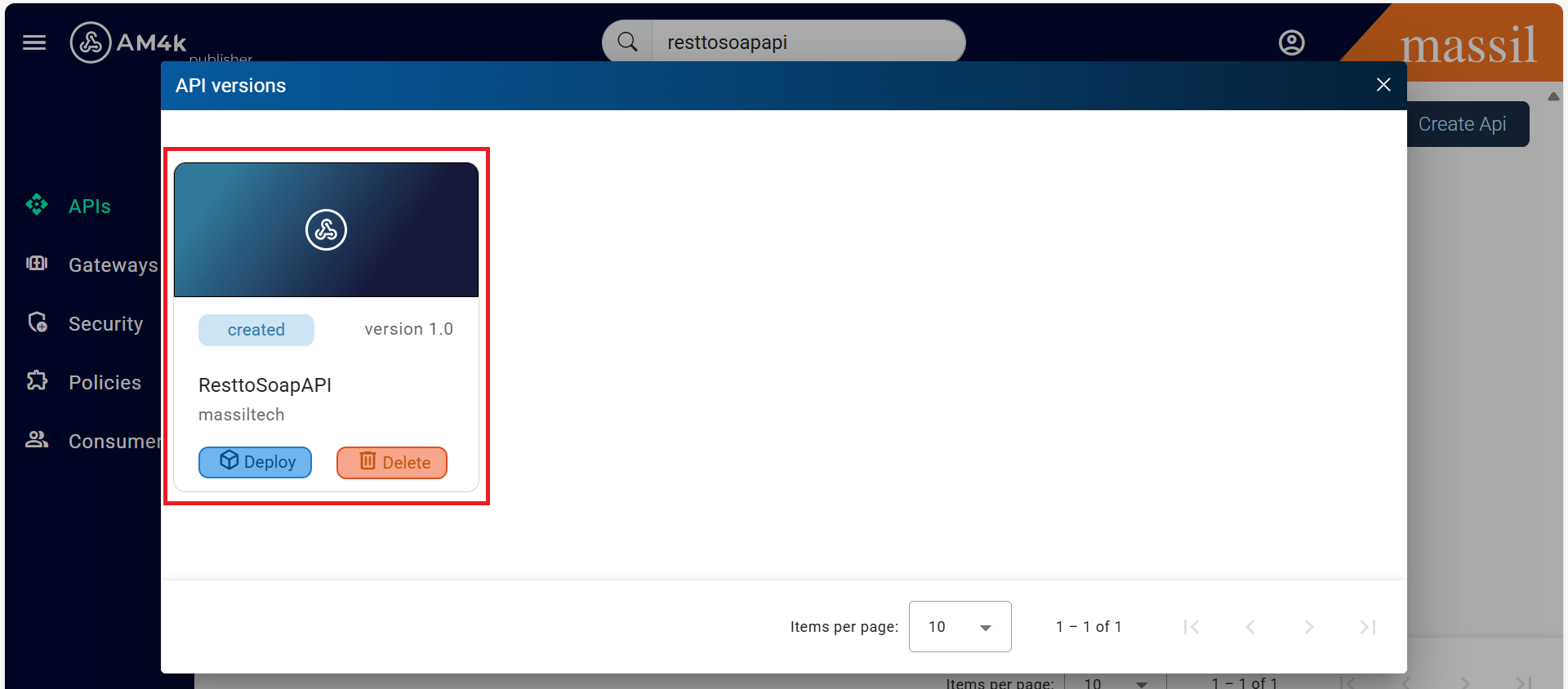
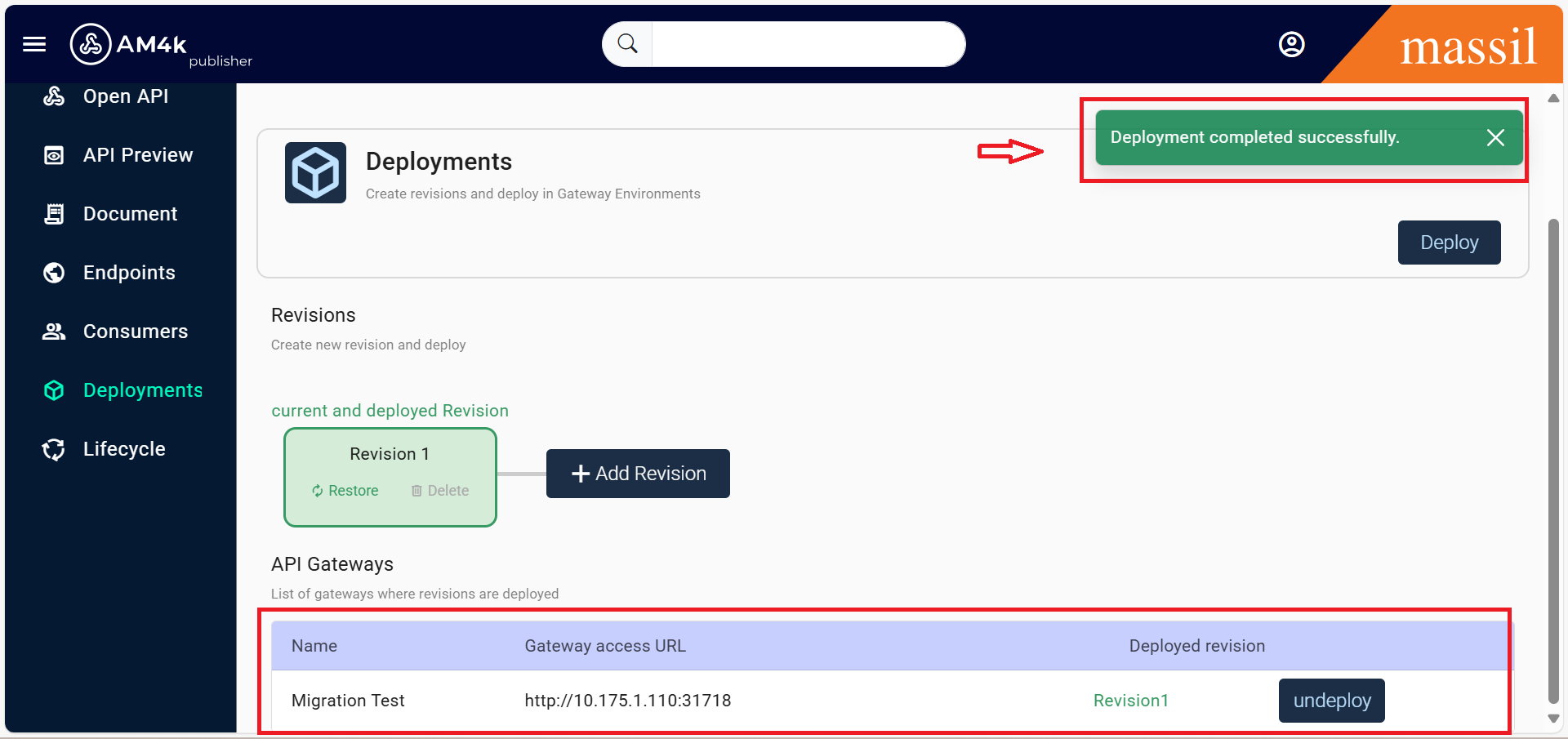
Step 14.Then,click on Deployment select gateway and click on deploy.
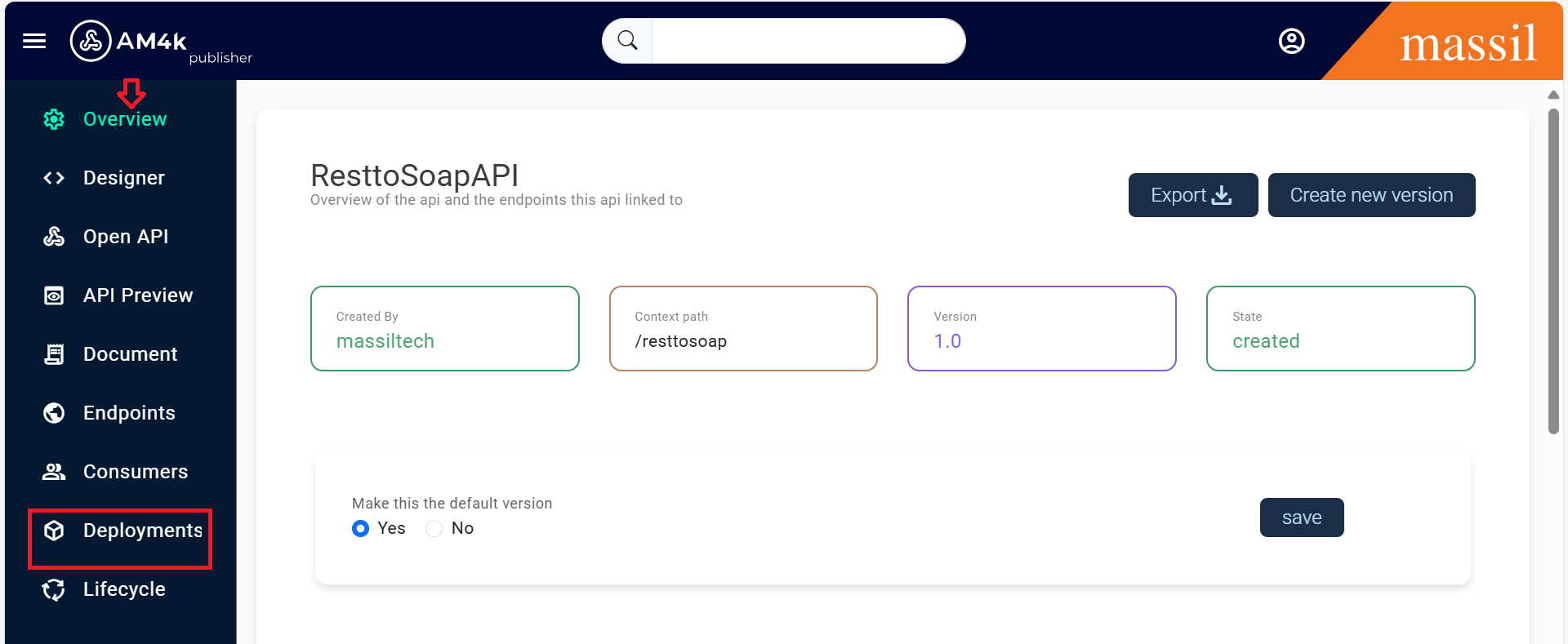
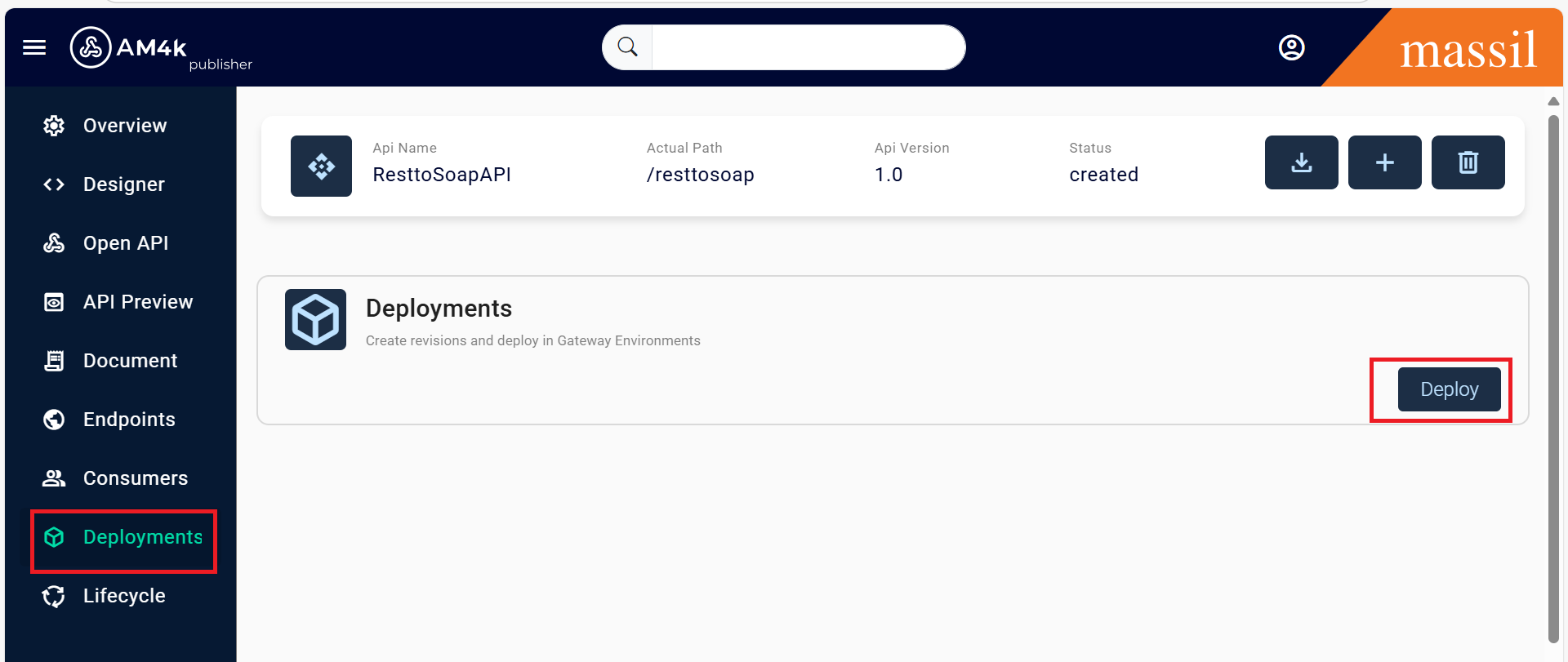
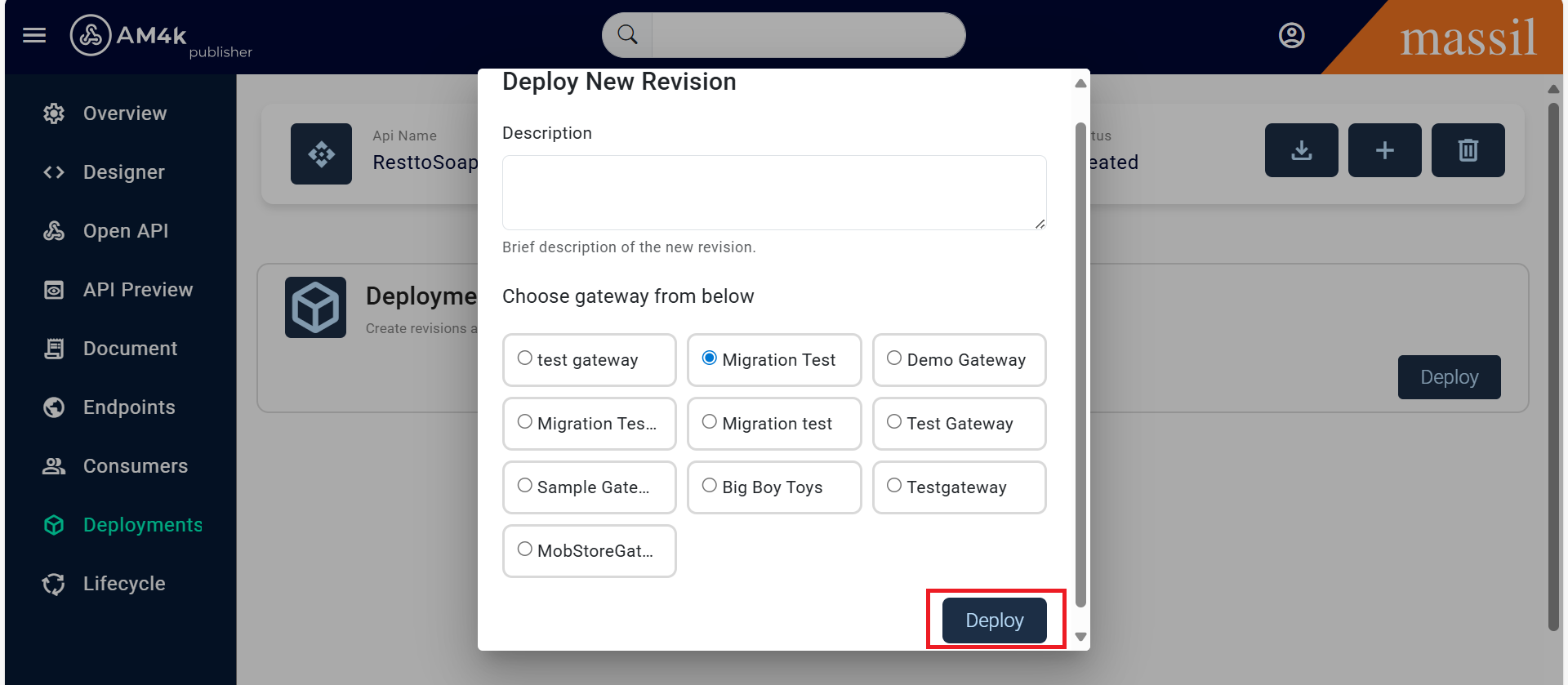
Step 15.one's it will completed deployement we can see deployemeent completed successfully.
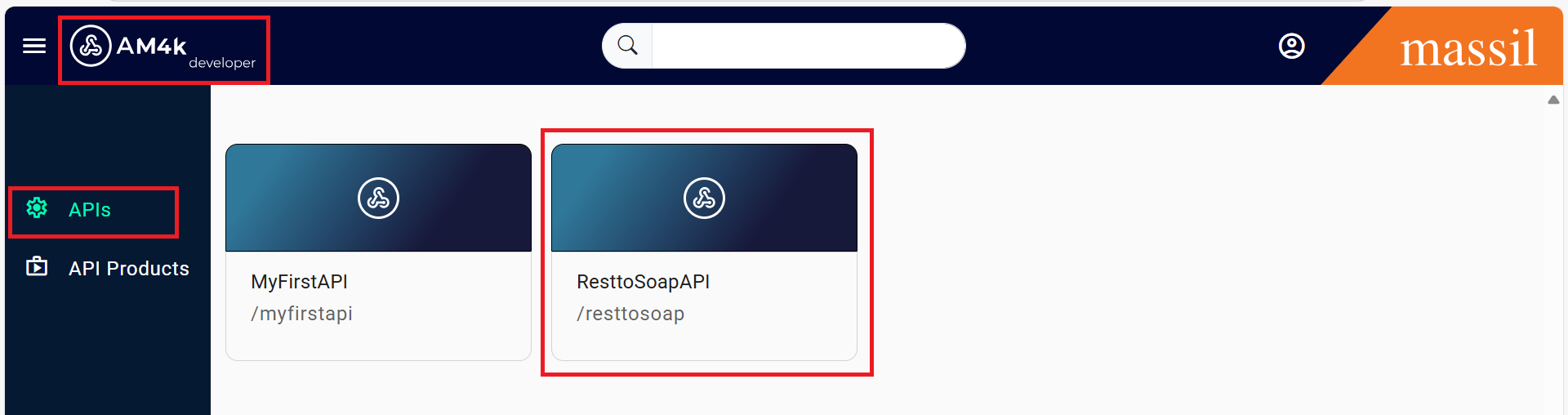
Step 16.Login to Devportal with the consumer credentials, once you log in to Devportal you see all the available apis subscribed to it.
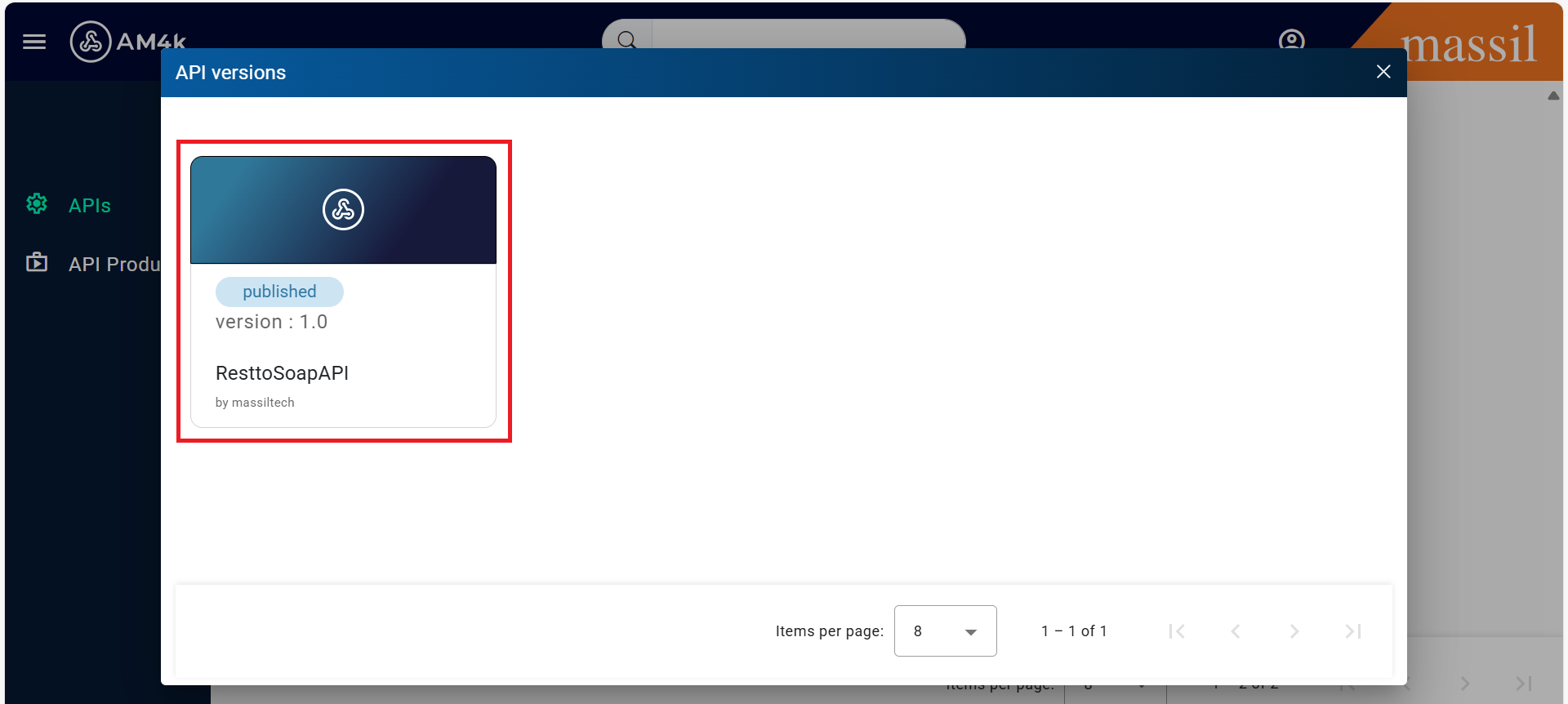
Step 17.Select the api to be tested and click you will see documents and also Try it.
Step 18.Once the key is generated,you will able to access the available resources to test.
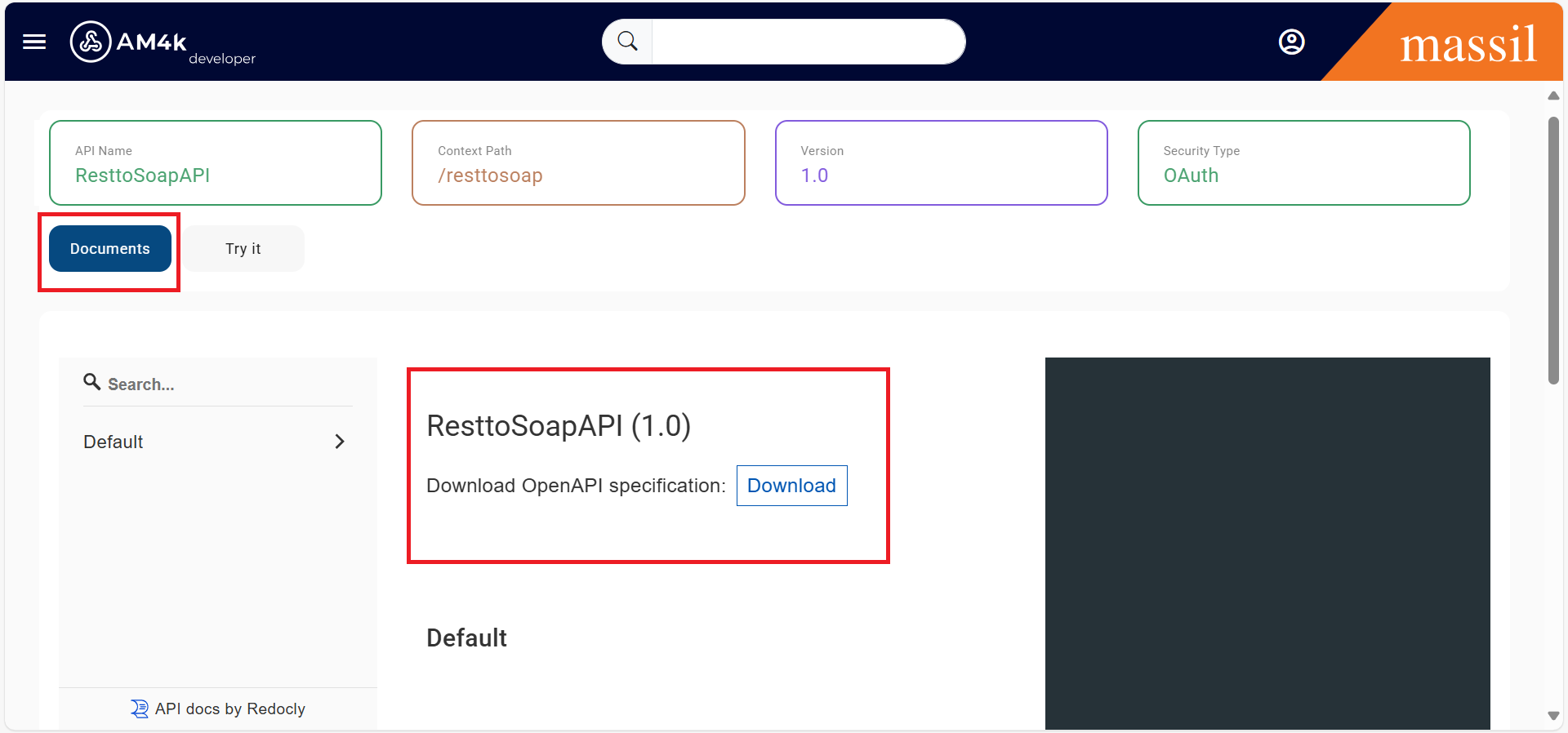
Step 19.Click on try it.
Step 20.Then choose the api products Get Access Token,it will generate the key.
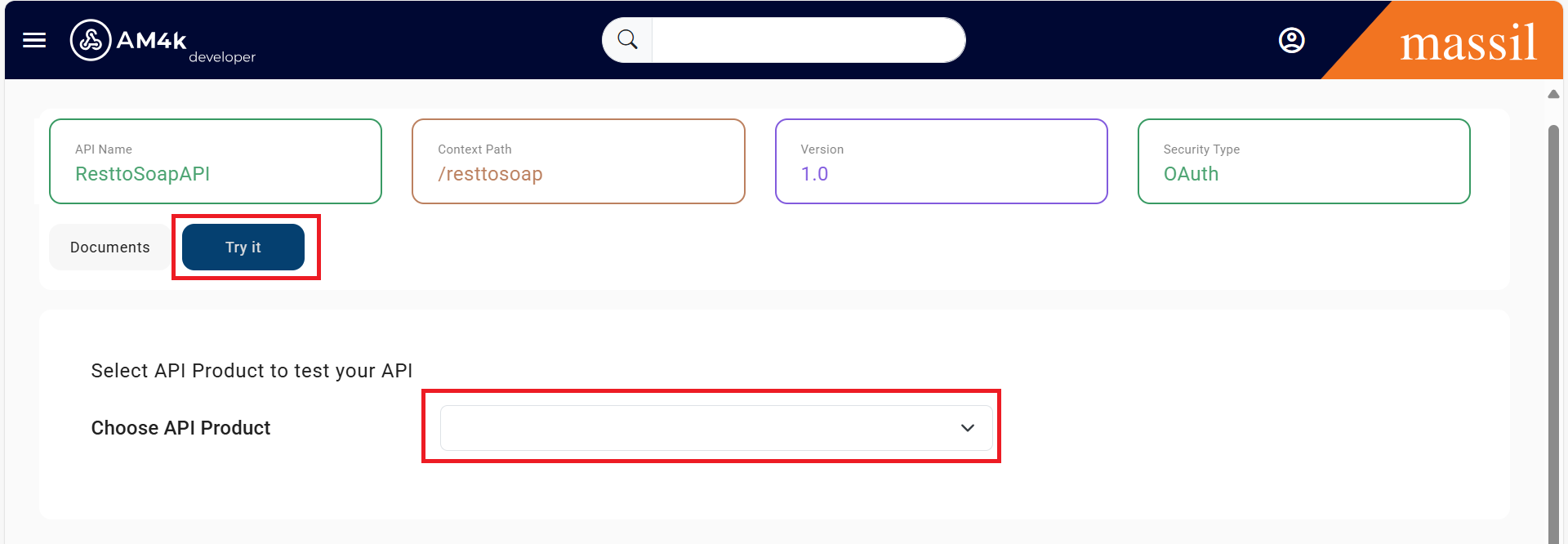
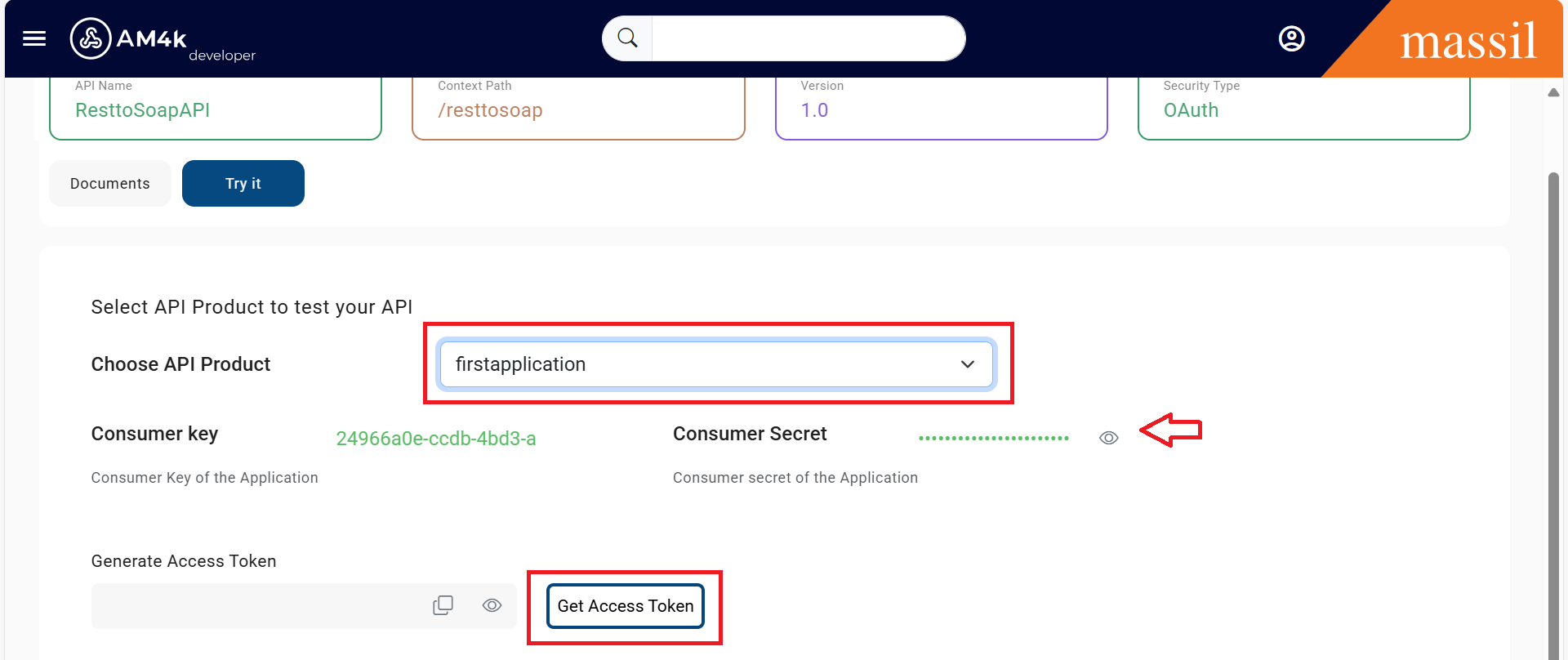
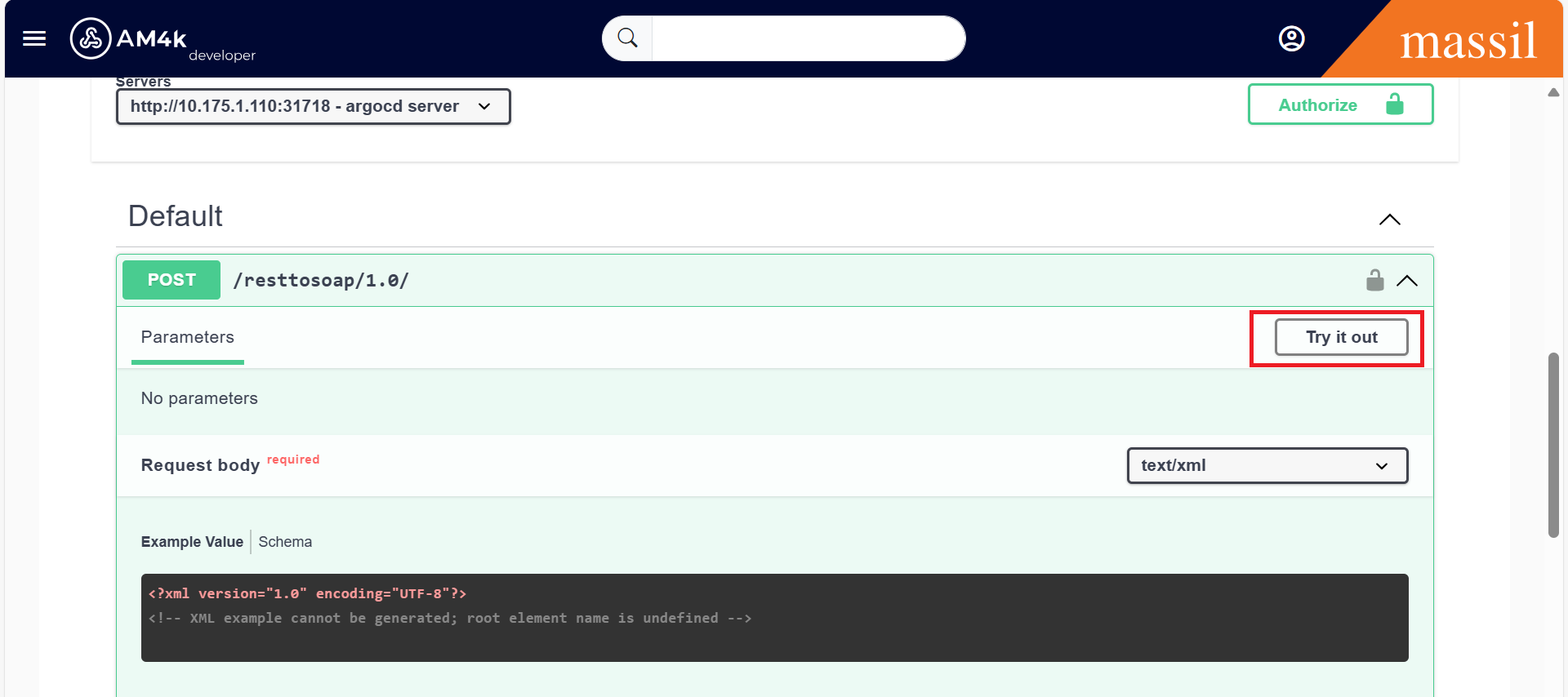
Step 21.In this case lets select the Adding resource to test , Now click on Try it out and provide the input body with values.
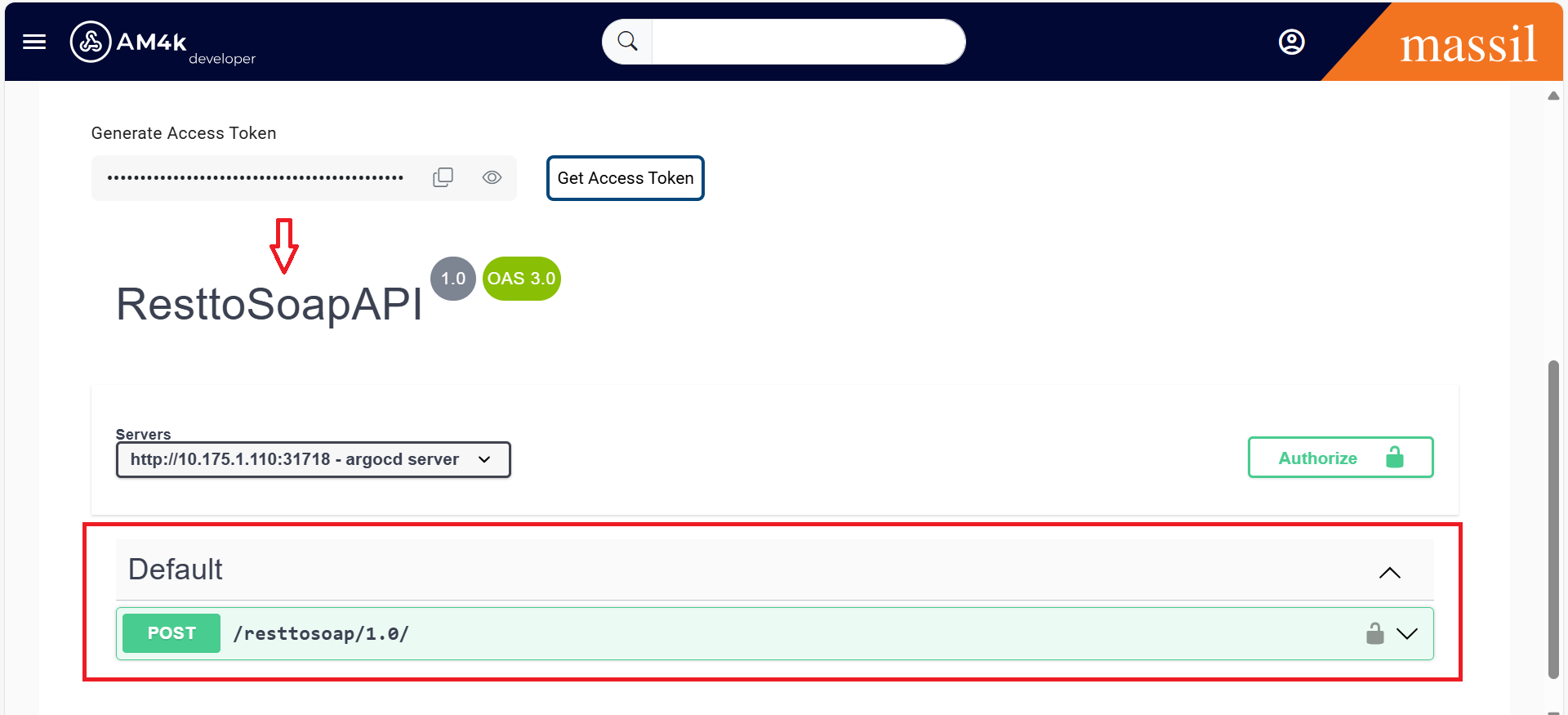
Step 22.As shown in below image I am providing values A = 1 and B = 1
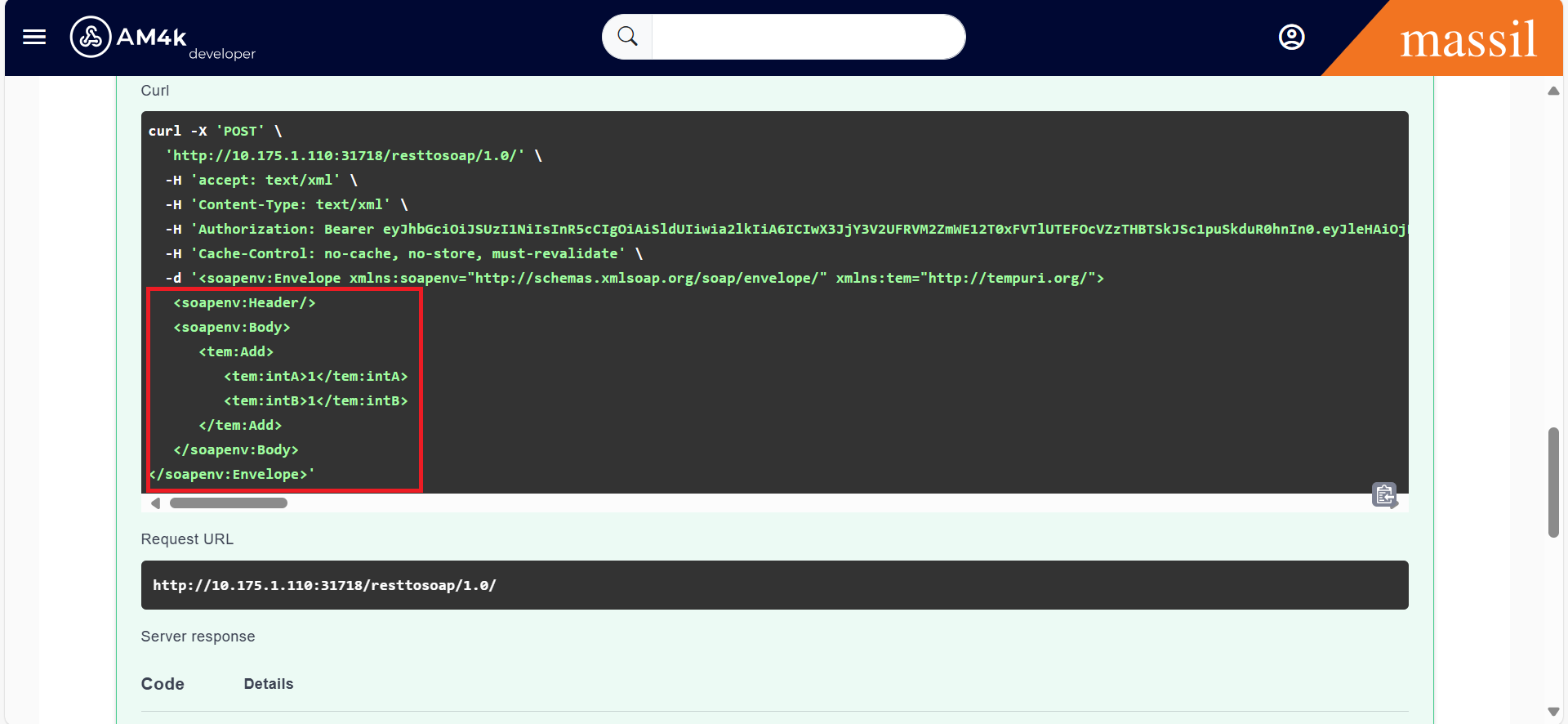
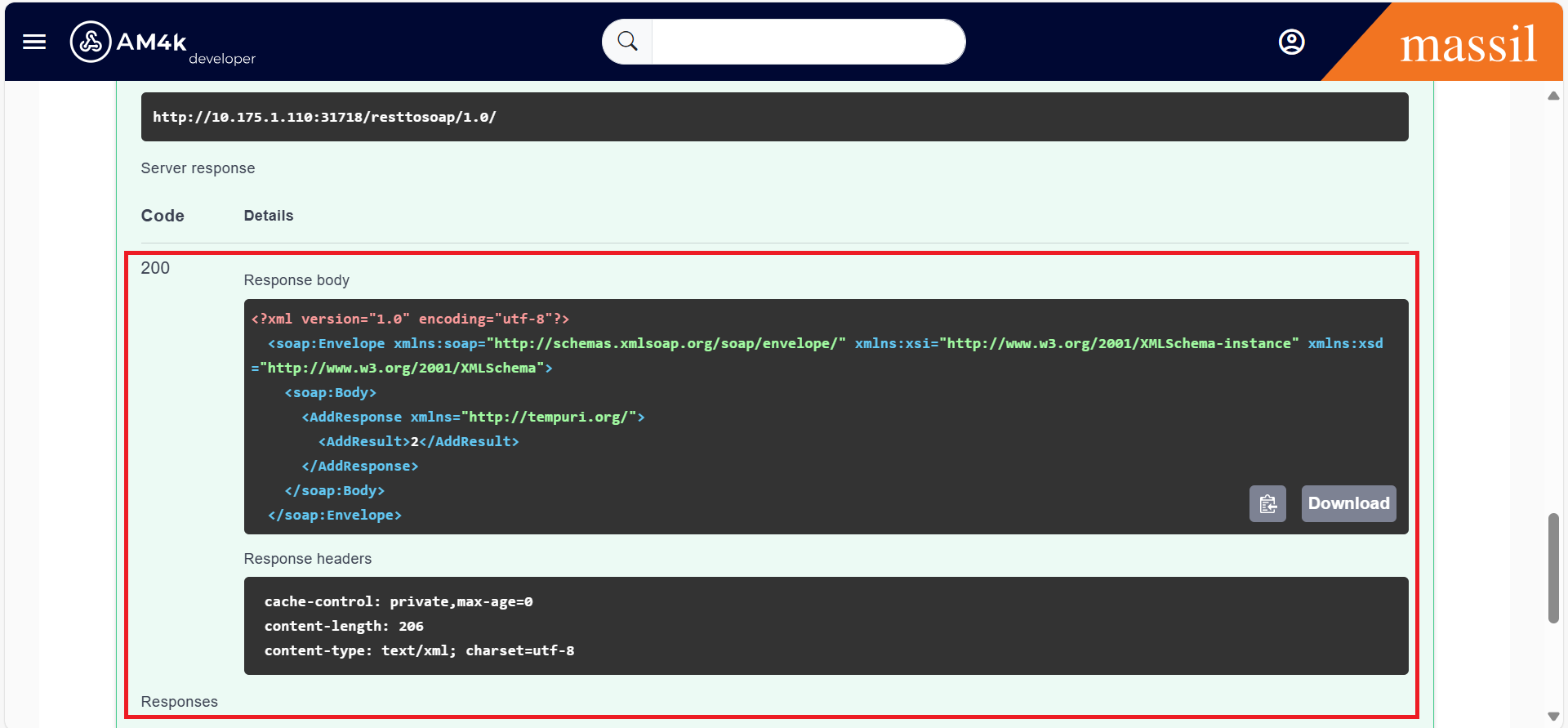
Step 23.Once you click on Execute , you can able to see the Response in the devportal as shown in below image.